Tutorial 11: Inviting your team
Who this page is for: client website admins — the volunteers who will load content and run the day-to-day site, generally with no prior web-admin experience.
What you'll have at the end
You'll have added a new team member with their own sign-in, given them Editor or Moderator access to the CMS (and Website Admin access too, if they'll help with memberships, events, or resources), and you'll know what each permission level actually lets someone do.
Before you start
New team member accounts are created in the Django admin, not the CMS — see Tutorial 1: Orientation if you're not sure how to get there.
Steps
-
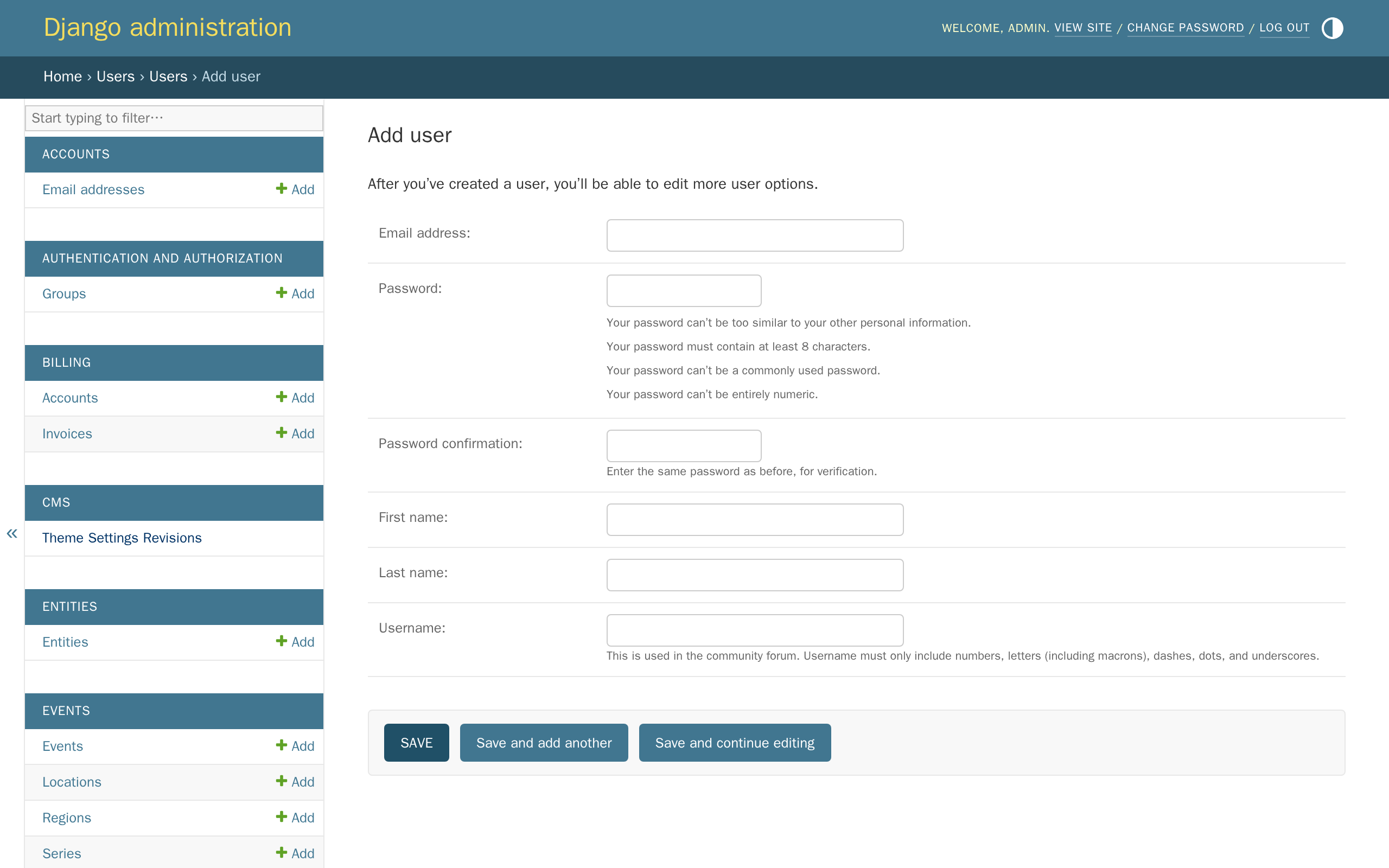
In the Django admin, click Users, then click Add next to Users.
-
Fill in their name, email address, and a password, then click Save. The username becomes part of their own account page's web address, and is also used for the forum — anything short and simple works.
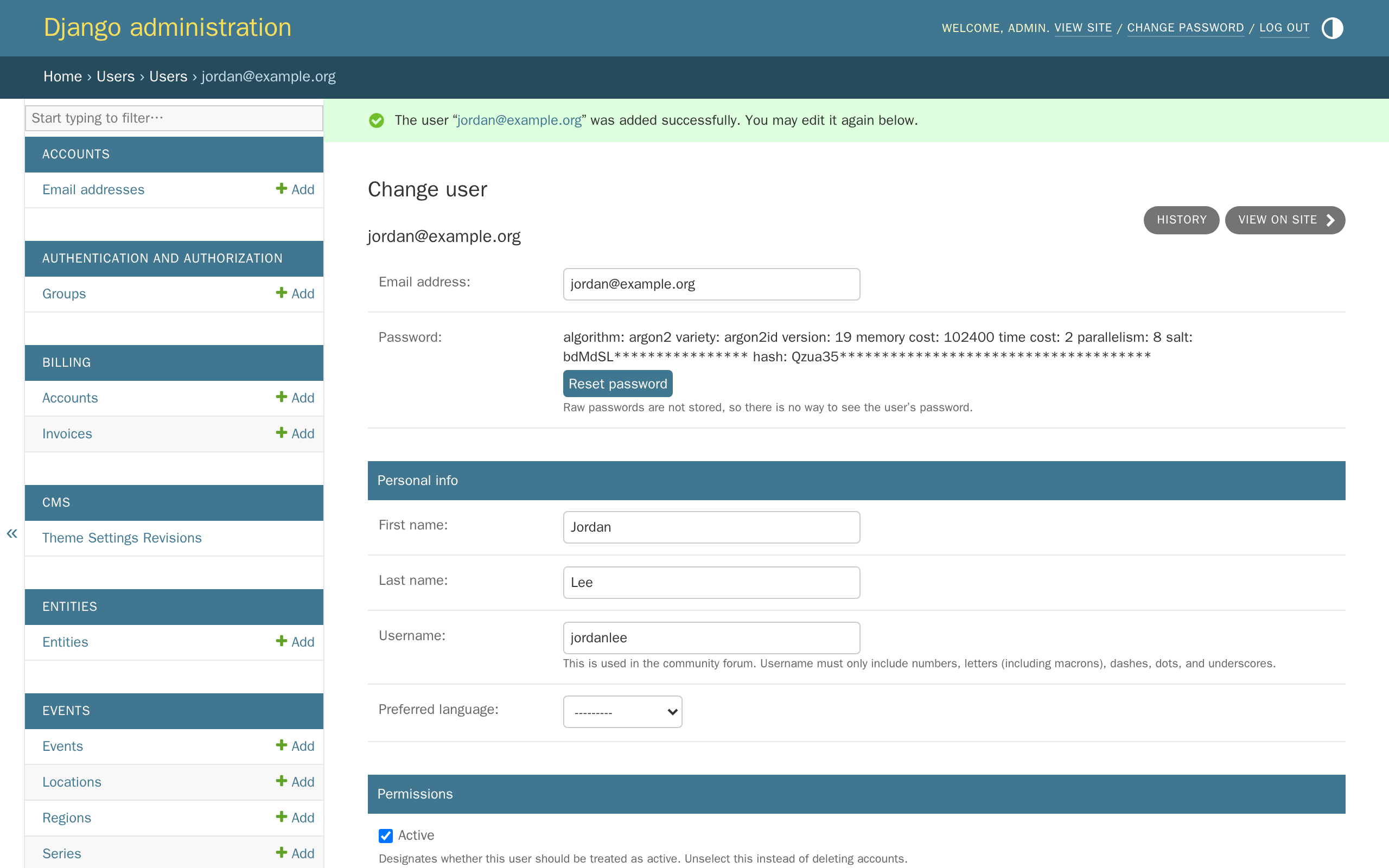
You choose this password yourself — there's no way to invite someone without setting one first. Give it to them however you'd share any password, or skip that altogether and tell them to click Forgot your password? on the sign-in page to set their own the first time they sign in.
-
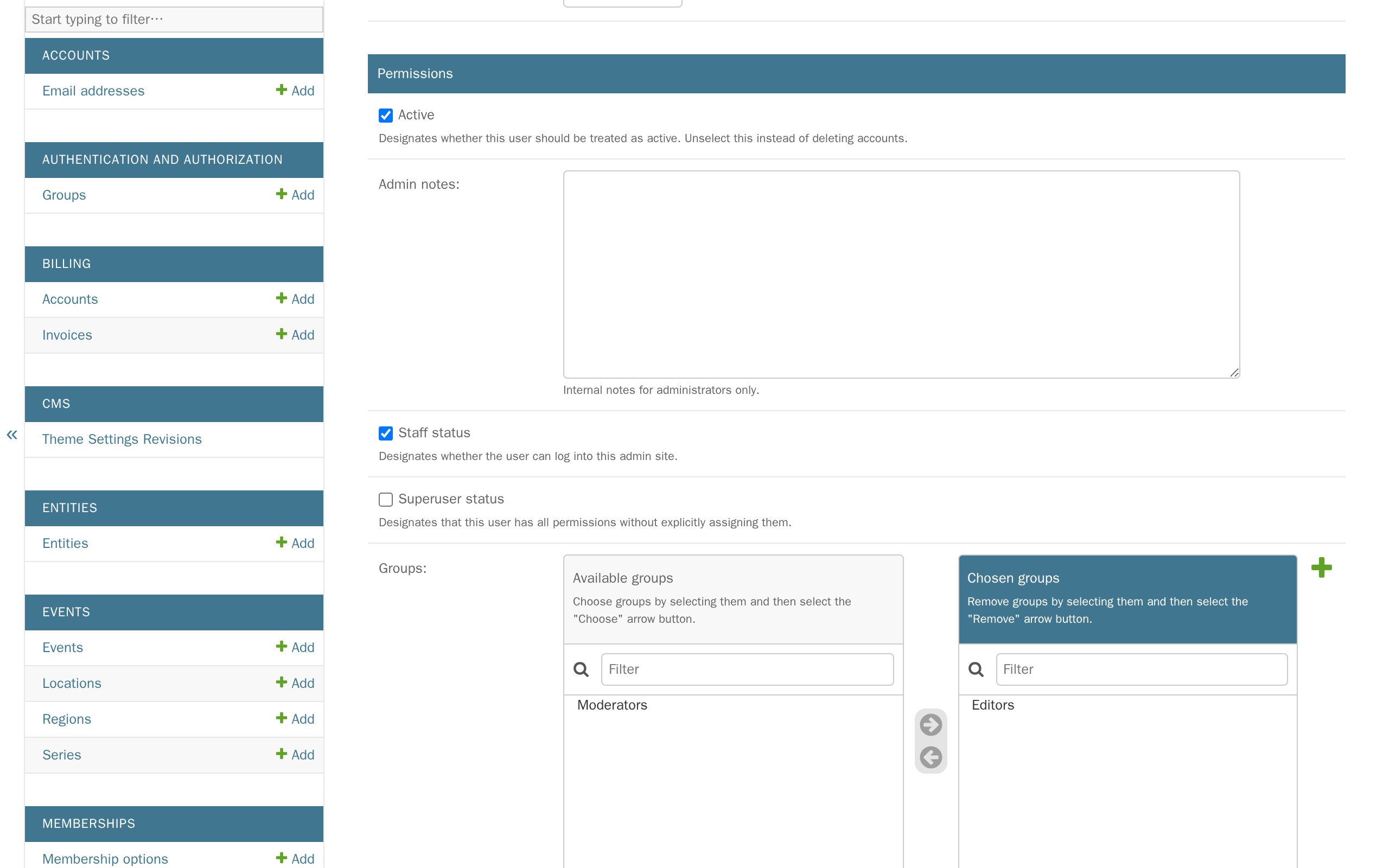
Under Permissions, tick Staff status and add them to Editors or Moderators under Groups (see the table below for the difference), then click Save and continue editing.
-
Tell your new team member to check their email.
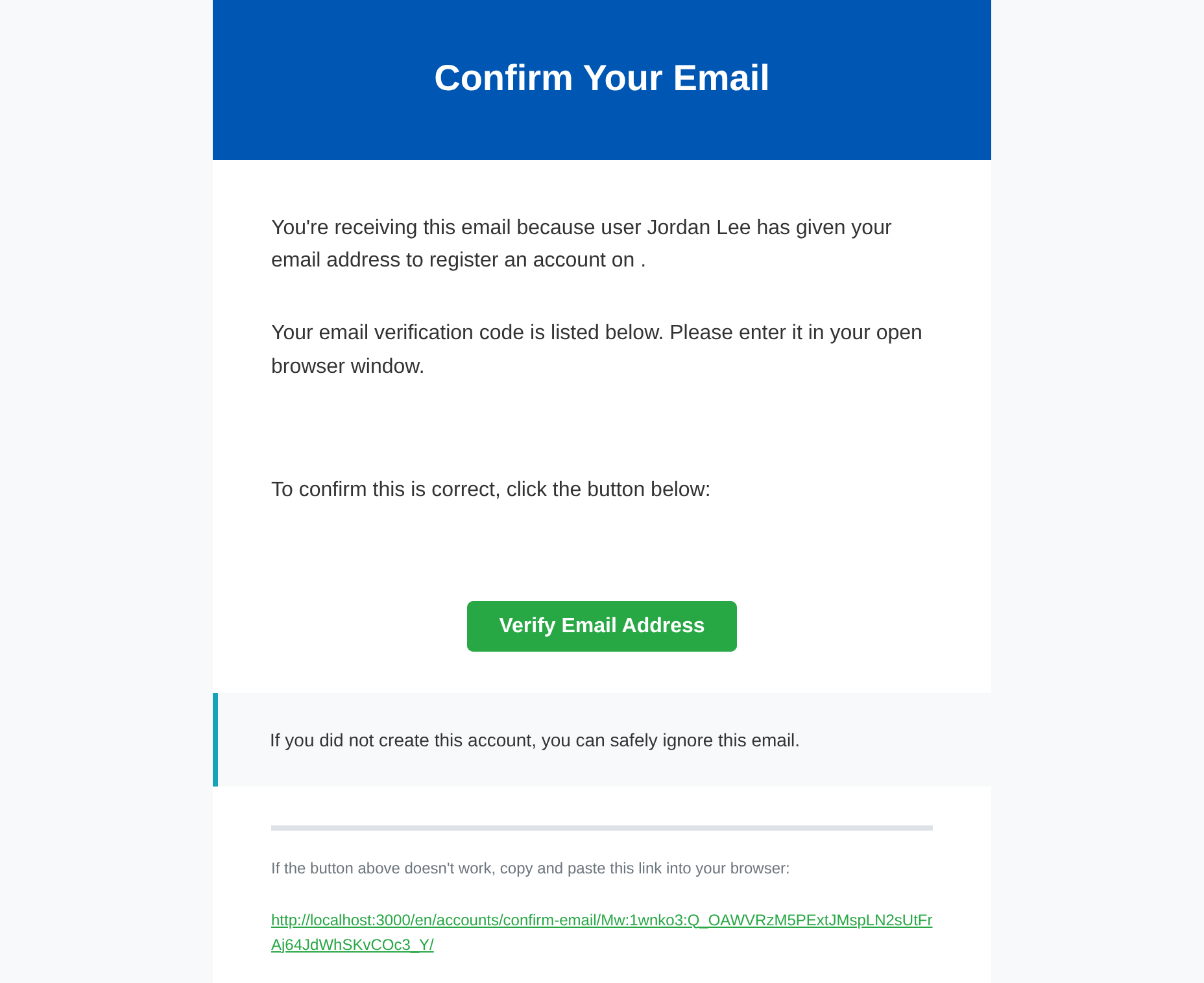
Every new account has to be confirmed by email before it can sign in — this isn't optional, and it happens the first time they try to sign in, not the moment you create the account.
What they'll see
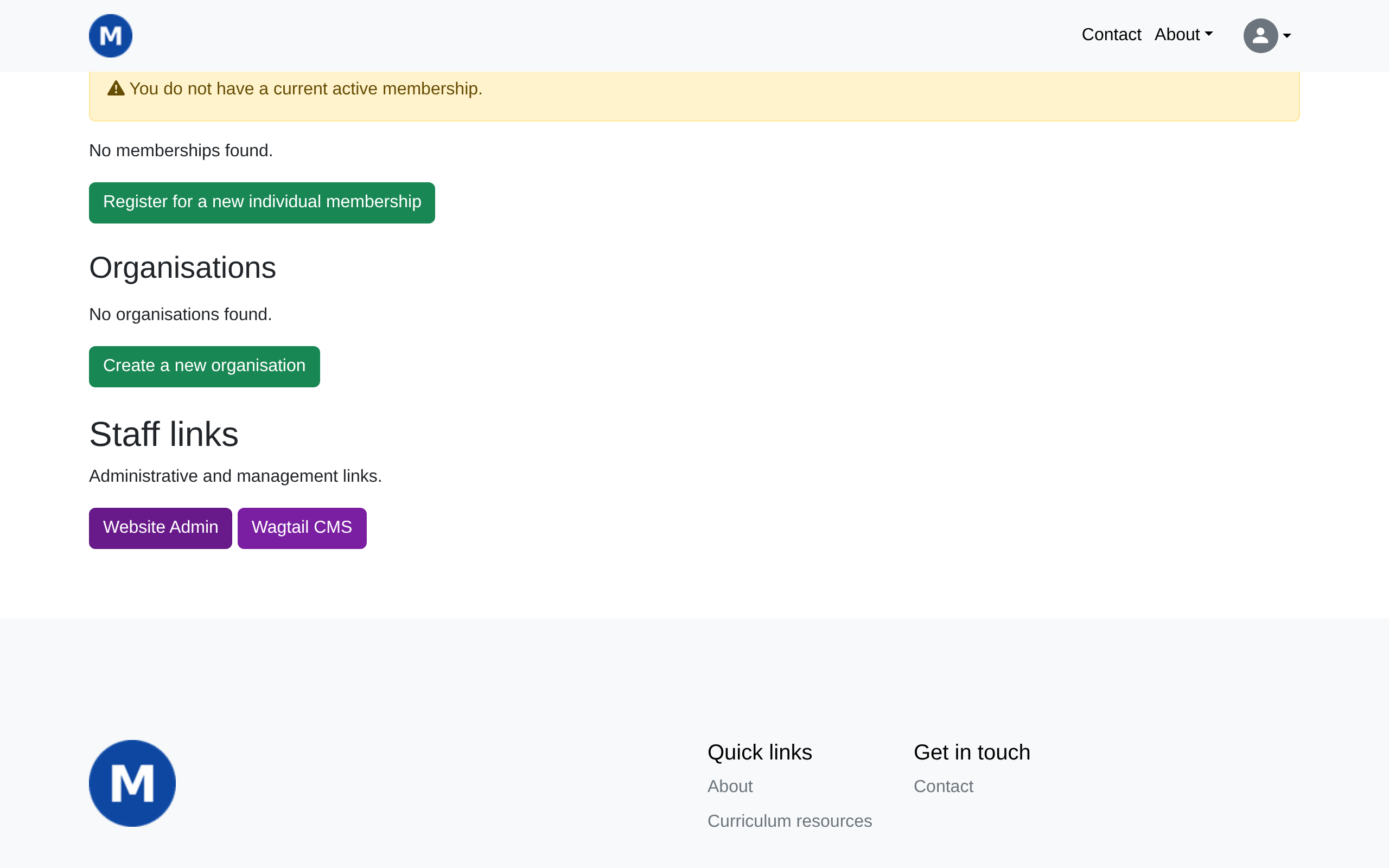
Once they've confirmed their email and signed in, they'll land on their own account page, with buttons under Staff links for whichever access you gave them.
What each permission level does
| Permission | How to grant it | What it lets them do |
|---|---|---|
| Editor | Add to Editors under Groups | Add and edit pages in the CMS, but not publish them — someone with Moderator access (or you) needs to publish their work. |
| Moderator | Add to Moderators under Groups | Add, edit, and publish pages in the CMS — the level most people loading day-to-day content need. |
| Website Admin | Tick Staff status | Access to the Django admin, where memberships (Tutorial 6), events (Tutorial 9), and resources (Tutorial 10) are managed — most people helping with day-to-day site work will need this too, alongside Editor or Moderator. |
| Full administrator | Tick Superuser status (as well as Staff status, to actually reach the Django admin) | Every permission everywhere, automatically, including ones added after this page was written — reserve this for people who should have the same full access you do. |
A Group and Staff status are independent, and cover different areas: a Group controls CMS access, Staff status controls Django admin access. Someone can have either, both, or neither. See Feature reference: Users & permissions for a higher-level summary of what each control is for, including the CMS's own simpler way to edit a user's name or username.
Changing permissions for someone who already has an account
You don't need to recreate an account to change what someone can do. In the Django admin, click Users, search for them by name, and click their email to open the same Permissions section shown in Step 3. Tick or untick whatever you need, then click Save.
Examples
The table above covers CMS access (Editors/Moderators) and blanket Django admin access (Staff status/Superuser status). For anything more specific — access to only some of the Django admin — you create a new Group with exactly the permissions you want, once, and reuse it for anyone who needs the same access, the same way Editors and Moderators already work for the CMS.
I want to add a user who can only edit CMS content
Follow Steps 1–2 to create their account. In Permissions, add them to Editors — leave Staff status unticked entirely. They'll see only the Wagtail CMS button under Staff links, with no way into the Django admin at all. (If they should be able to publish their own work too, not wait for someone else to, use Moderators instead of Editors.)
I want to add a user who can manage users and memberships
Editors and Moderators only cover the CMS — managing users and memberships happens in the Django admin, so this needs its own Group:
- In the Django admin, click Groups, then click Add next to Groups.
- Name it something clear, like Membership Managers.
- In the permissions list, type
userinto the filter box and tick Can view user, Can add user, Can change user, and Can delete user, from the rows starting Users | user | — ignore the profile field and user profile rows the same search also turns up; those are for something else. - Clear the filter, type
membership, and tick the view/add/change/delete permissions for membership option, Membership: Individual, and Membership: Organisation. - Click Save.
Now follow Steps 1–3 to create (or open an existing) account, tick Staff status, and add them to Membership Managers under Groups instead of Editors or Moderators. They'll see only Users and Memberships in the Django admin — nothing else.
I want to add a user who can only add and edit resources
Same idea, with a Group scoped to resources instead:
- Groups → Add → name it something like Resource Editors.
- Type
resourceinto the filter box and tick Can add resource and Can change resource, plus Can add resource component and Can change resource component — the second pair is what lets them attach the actual file or link, not just create an empty entry. Leave resource category and resource tag alone unless they should manage those too, and leave every delete permission off. - Click Save, then add the person to this group — with Staff status ticked — the same way as the example above.
They'll see only Resources in the Django admin, and can add and edit resources but not delete them.
What's next
The last tutorial in this series covers the launch checklist — the pre-launch review, going live, and what to tell your members.