Articles
Who this page is for: client website admins — the volunteers who load content and run the day-to-day site.
Articles are blog-style posts — news, updates, and announcements — published from the CMS, the same way you manage other pages. Unlike Events or Resources, articles aren't an optional feature switched on by your provider: they're always available, the same as ordinary pages.
Set up an articles index page (one-time)
Before you can add any articles, your site needs one Articles index page — a single page that lists every published article. Most sites only ever need one.
-
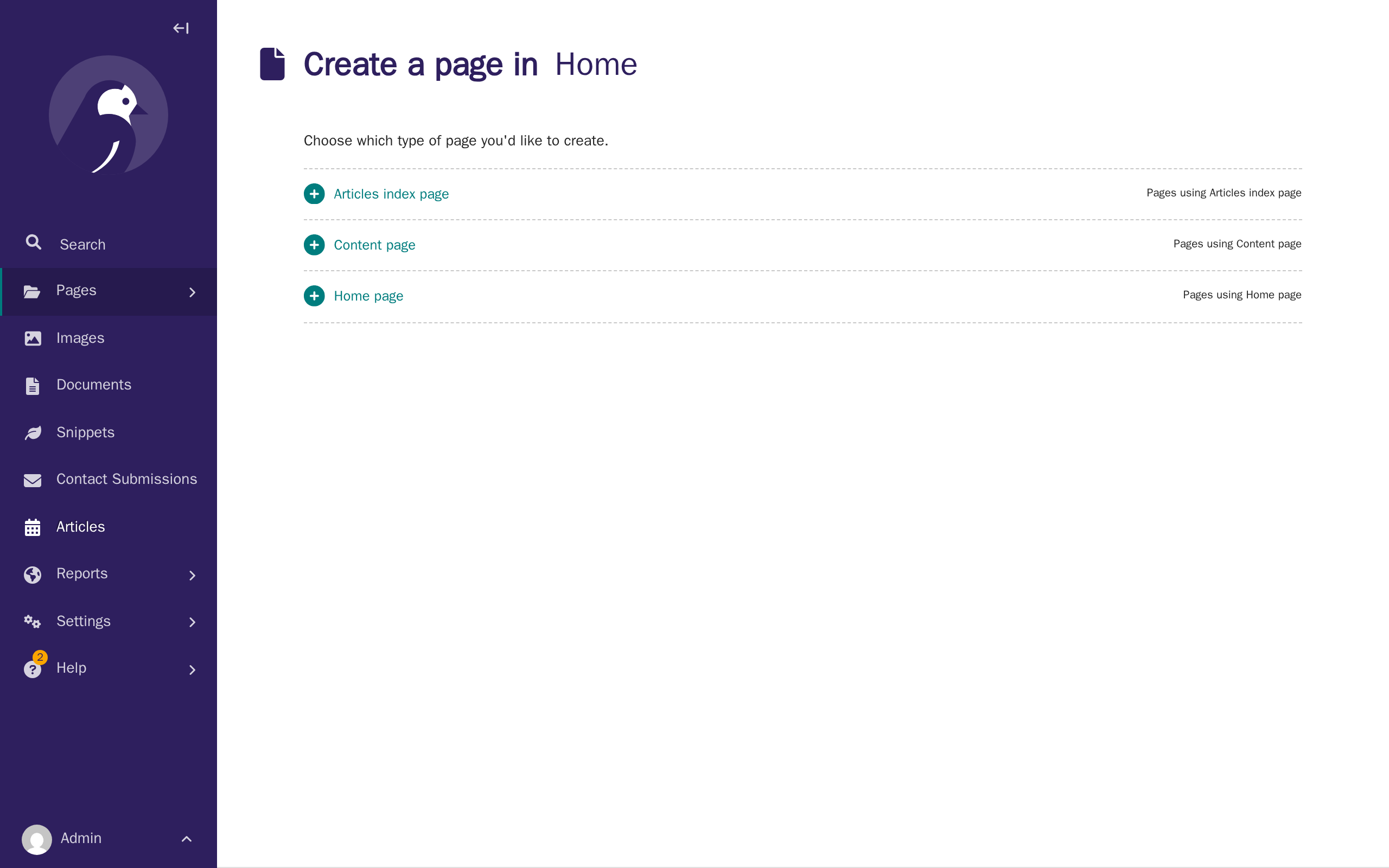
In the CMS, go to Pages, open Home, and click Add child page. Both Articles index page and Content page are offered here — choose Articles index page.
-
Give it a title (e.g. "Articles") and an optional intro, then publish it the same way you'd publish any other page — see Tutorial 3: Your first pages if you're not sure how.
Add an article
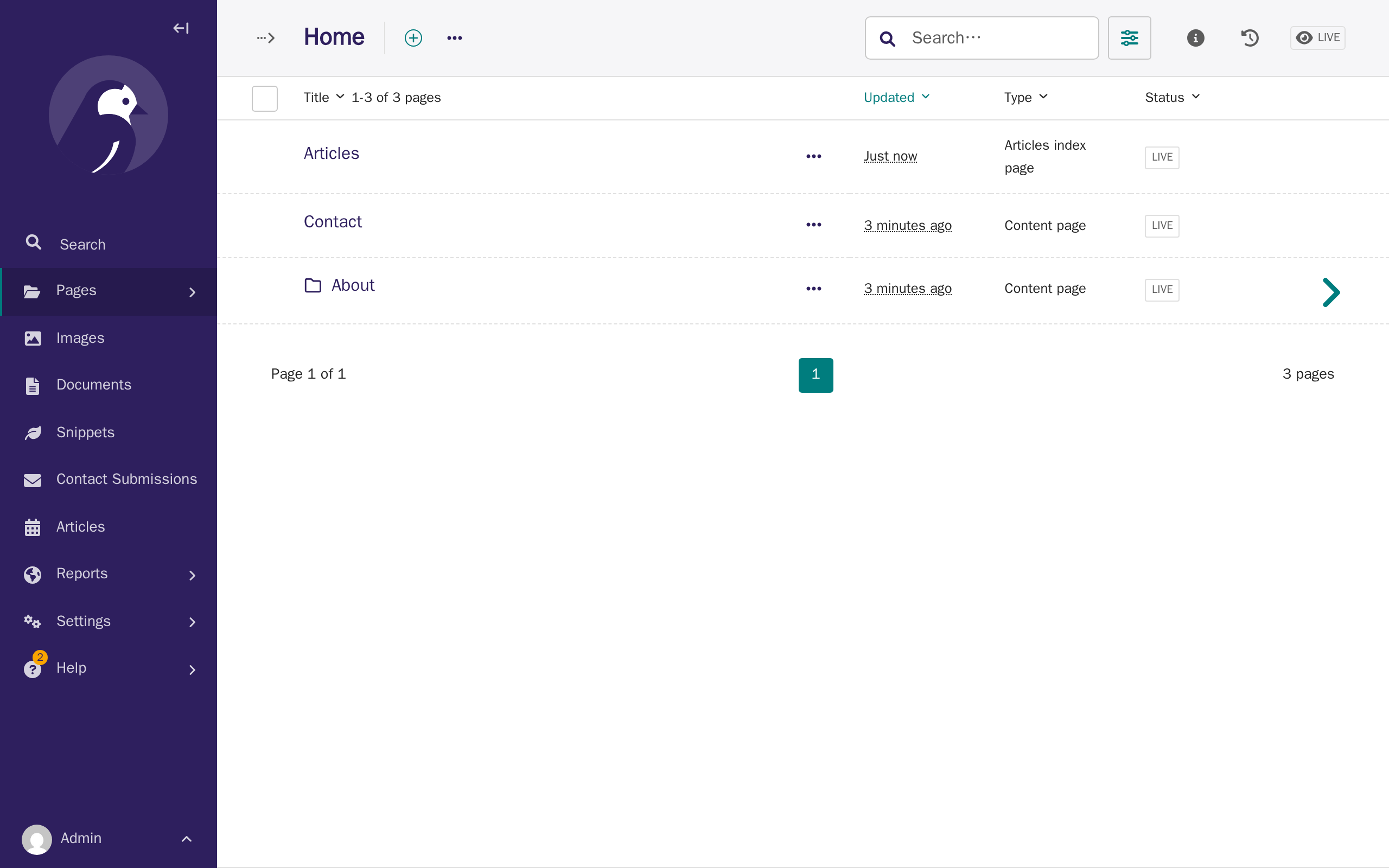
Once an articles index page exists, the quickest way to add a new article is the Articles item in the CMS sidebar — it lists every article on the site, whichever index page it's under, and its Add article page link takes you straight to a new article form. If your site only has one articles index page, that link skips straight to the form below; with more than one, you're asked which one to add it under first.
-
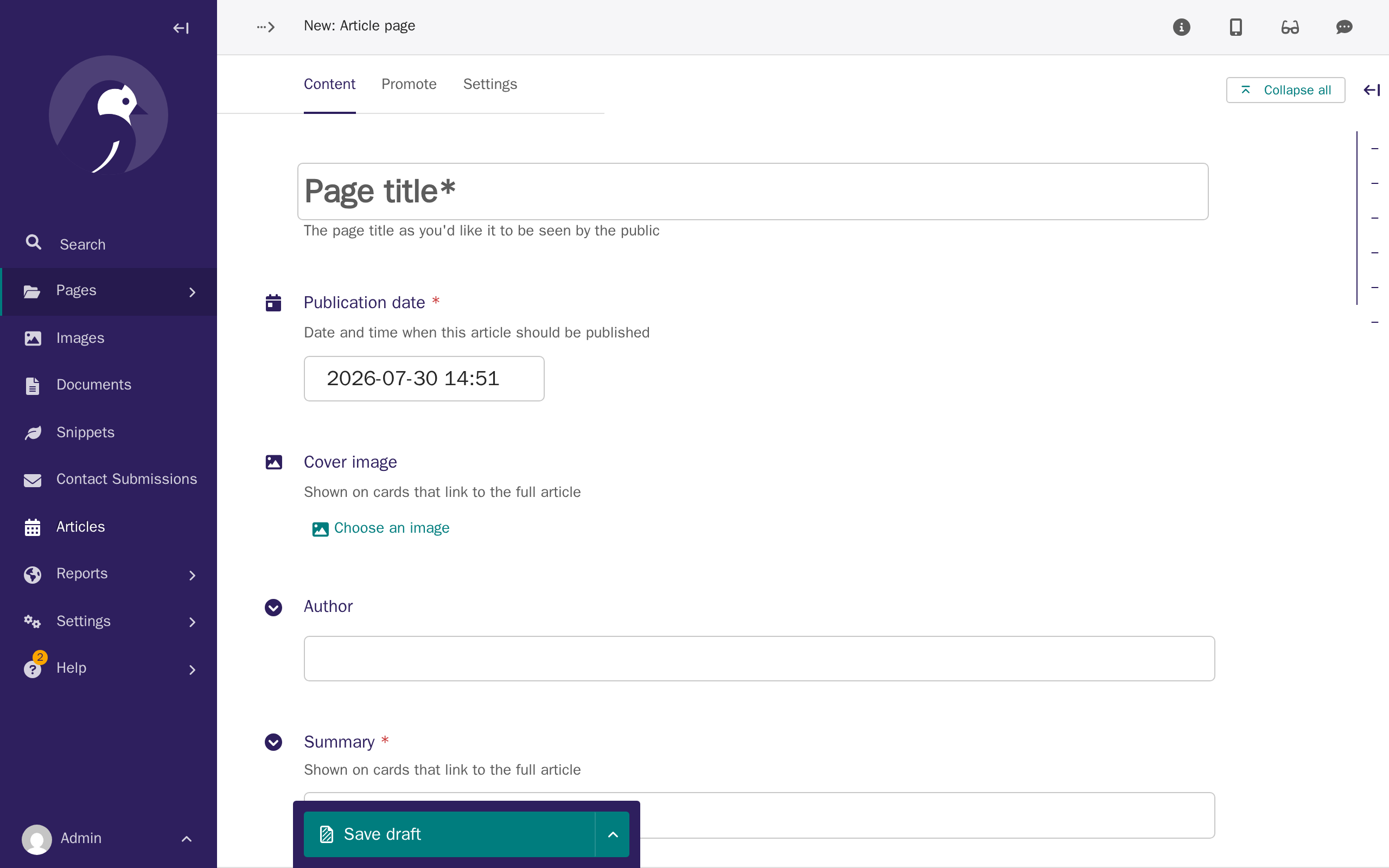
In the CMS sidebar, click Articles, then Add article page.
-
Fill in the fields below.
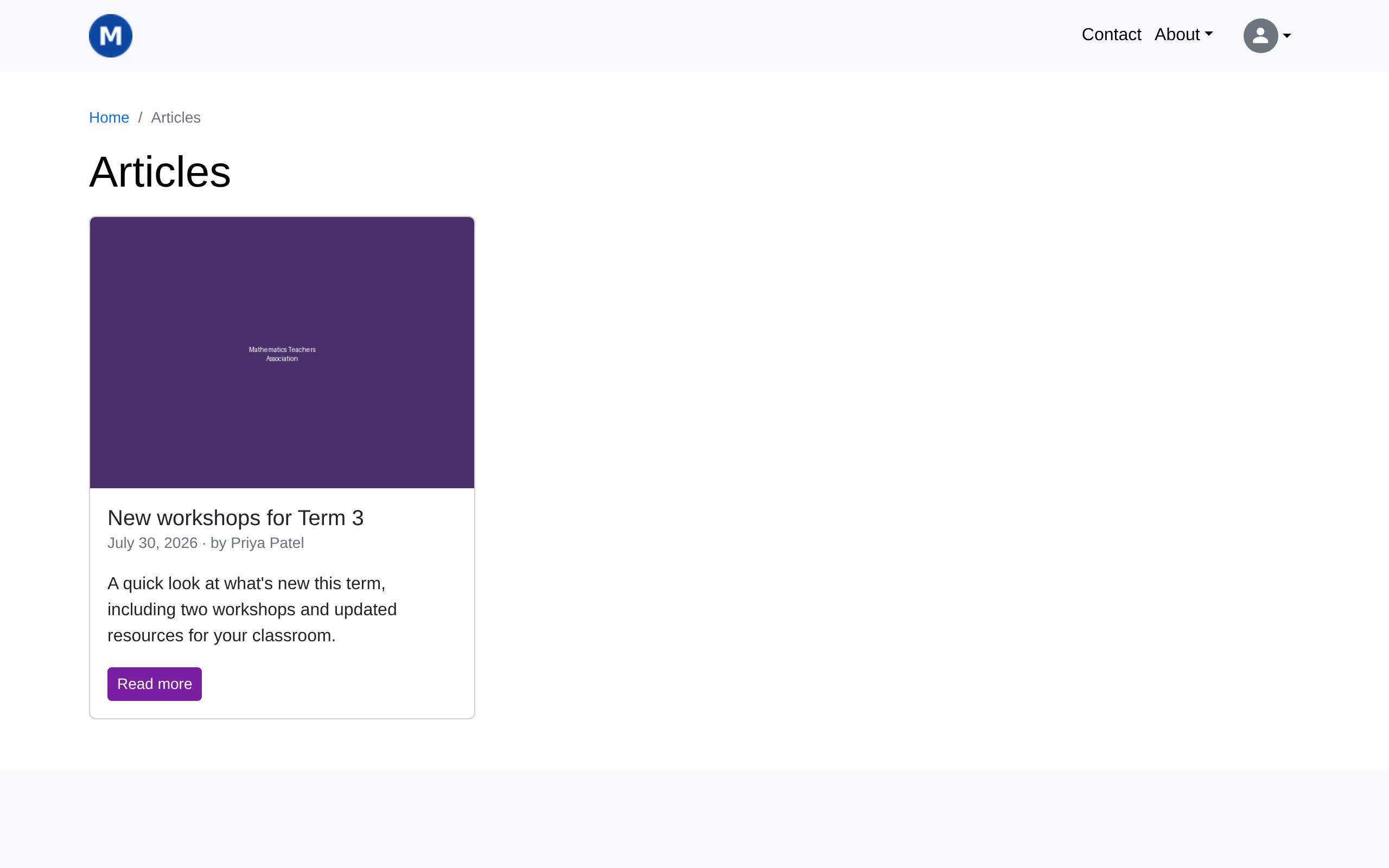
Field What it does Title The article's heading. Publication date Controls the order articles are listed in, and when an article starts appearing on the listing page and the Recent Articles widget — see Publication date vs page status below. Defaults to now. Cover image Shown on the article's card on the listing page and the widget. Optional — a plain placeholder shows if you leave it out. Author Free text, shown alongside the publication date. Optional. Summary Shown on cards that link to the full article. Required. Body The article's full content, built from the same content blocks as an ordinary page — see CMS: Content blocks. Required. 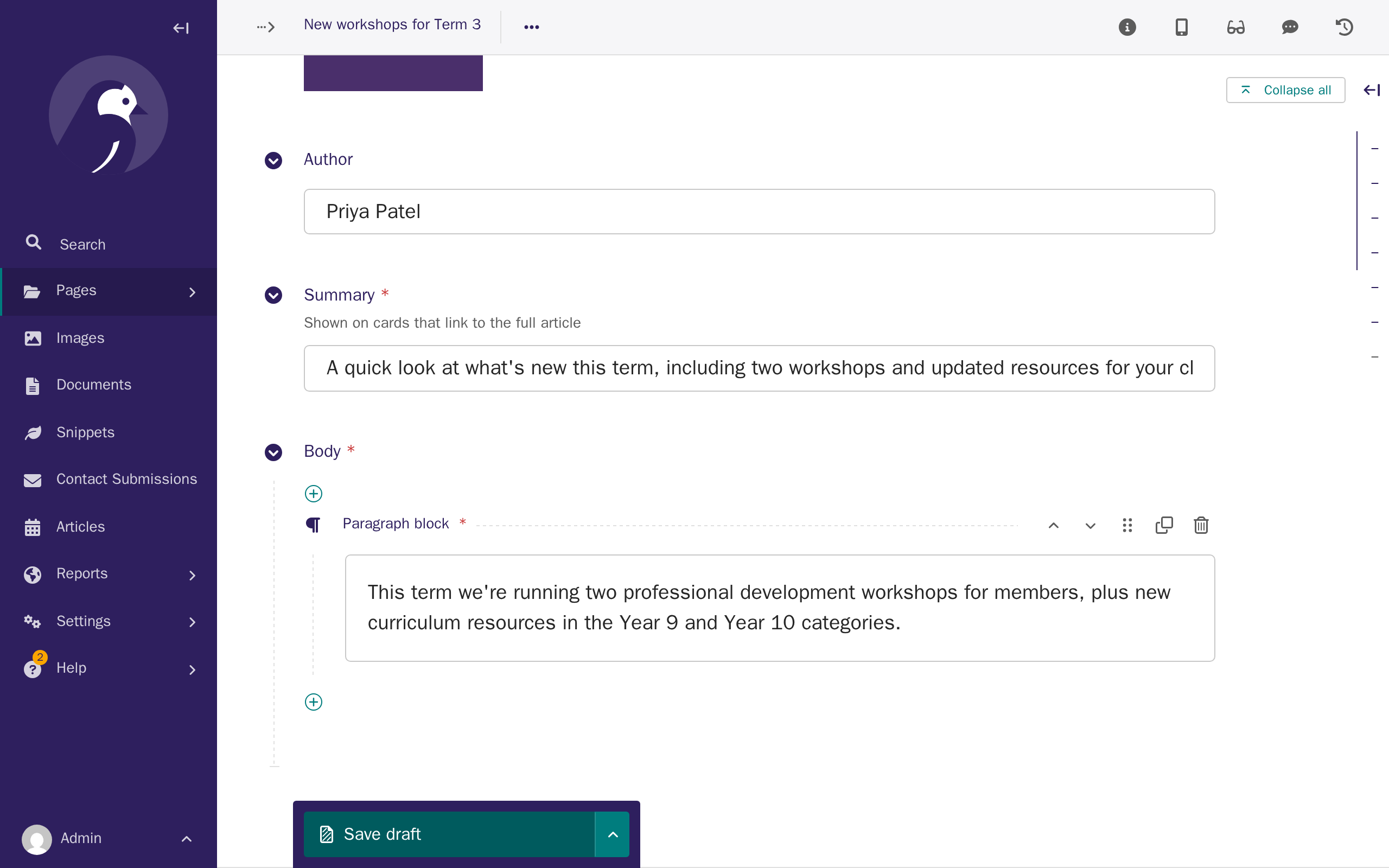
-
Publish it the same way as any other page, from More actions.
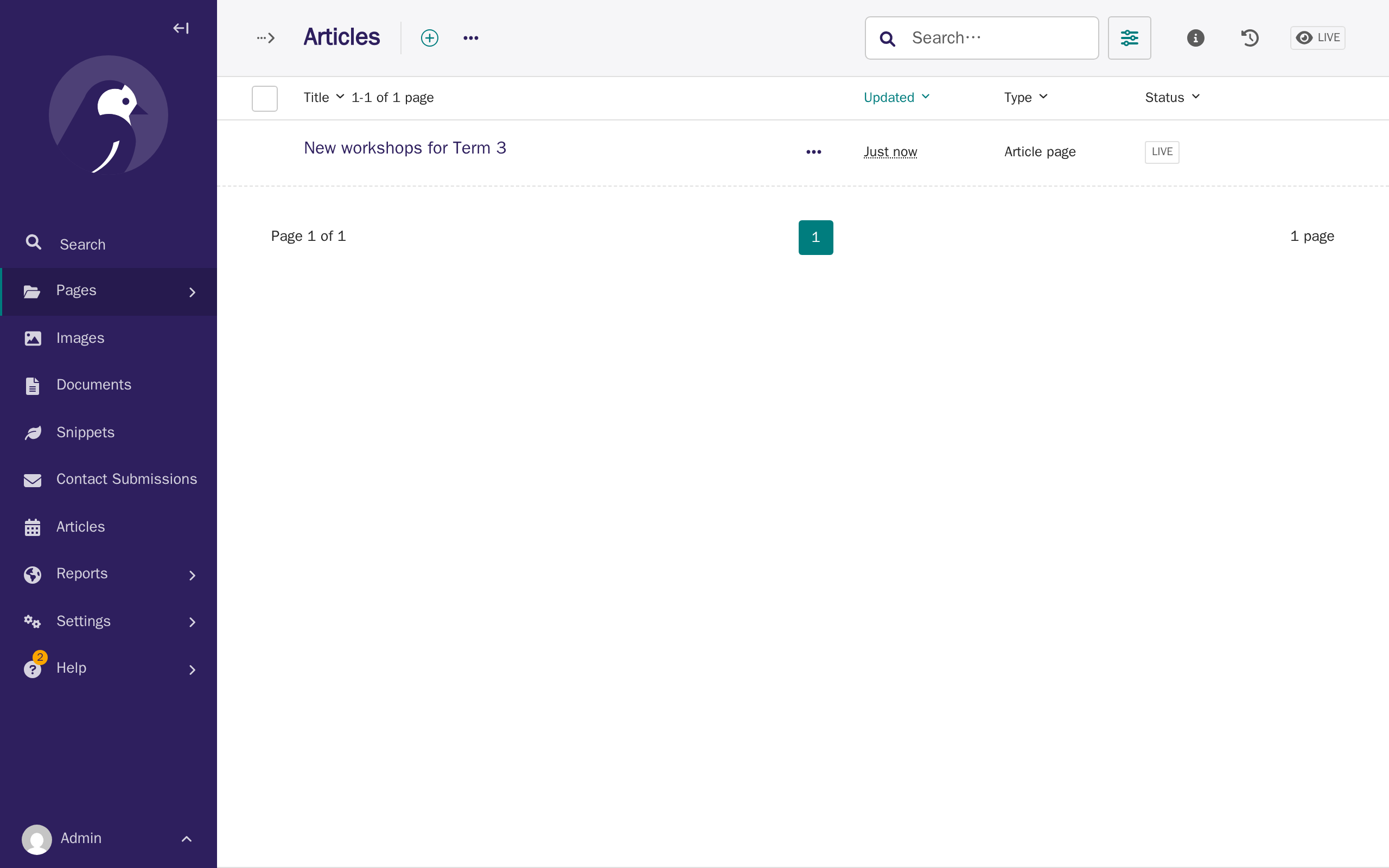
How articles display
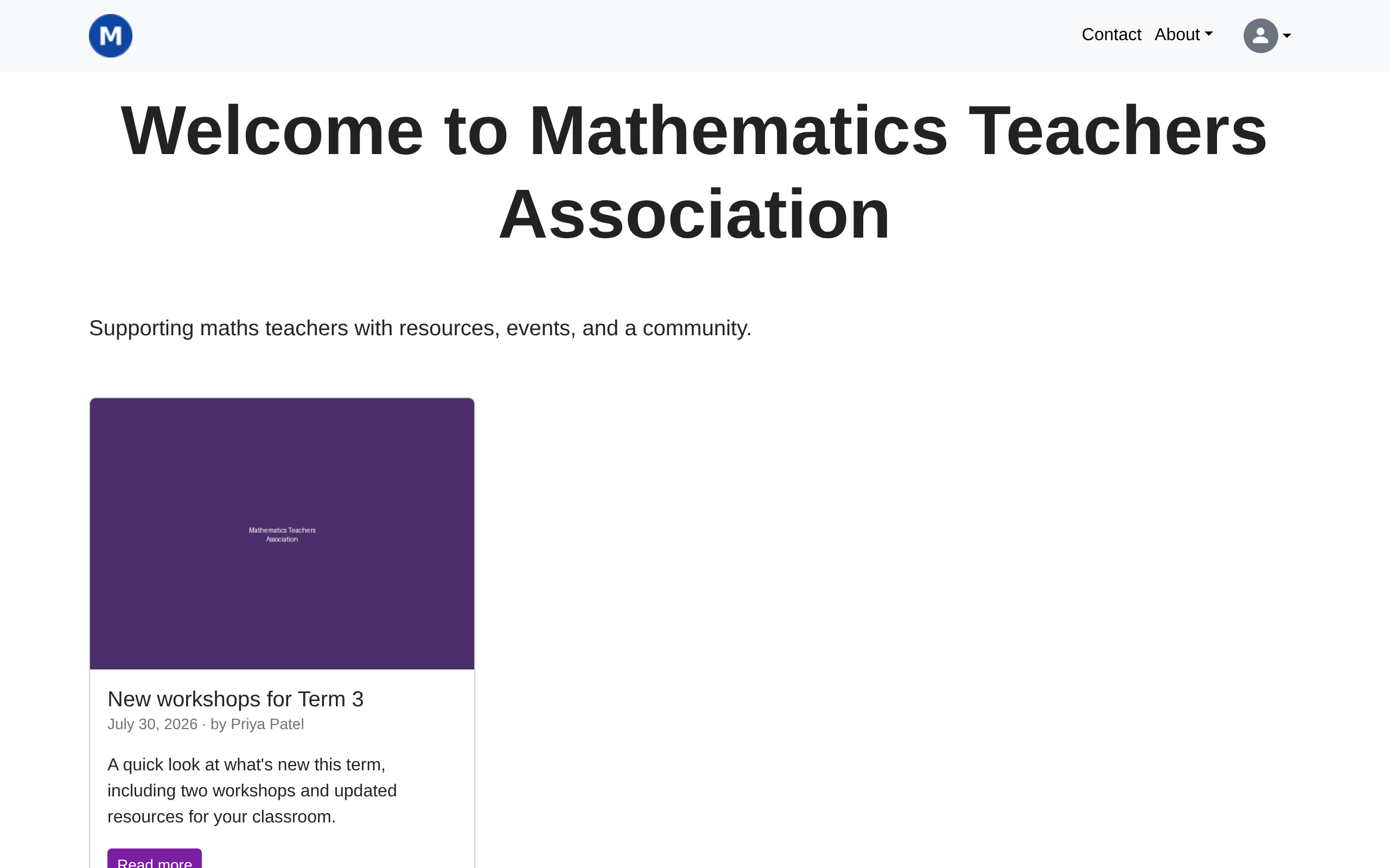
Published articles are listed newest-first at /articles/, 12 per page.
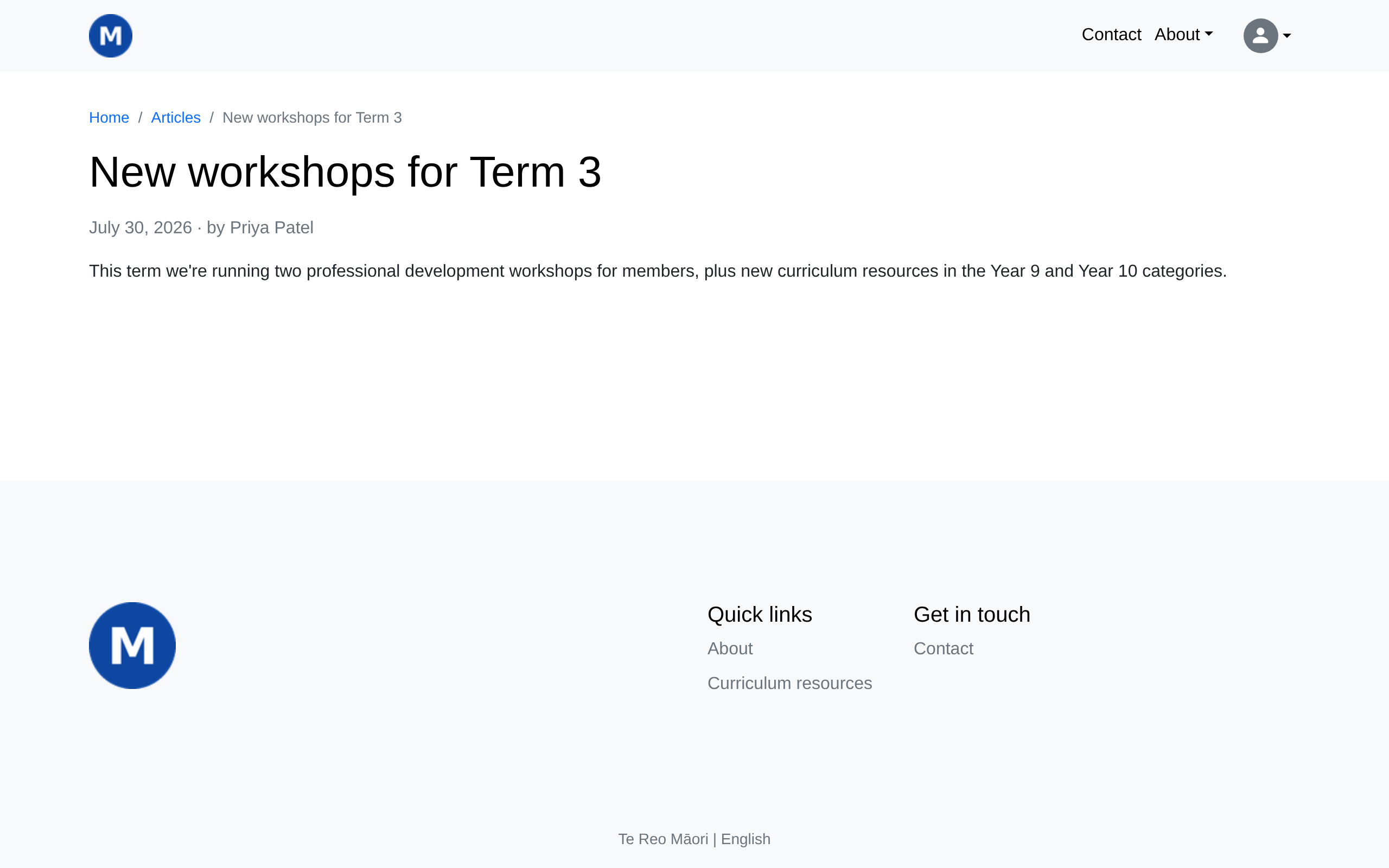
Clicking through to an article shows its full body, publication date, and author.
Publication date vs page status
Two separate things control whether an article is visible, easy to mix up:
- Page status (Live/Draft, same as any CMS page) controls whether the article's own page can be opened at all.
- Publication date only controls the listing page and the Recent Articles widget: an article is left out of both until its publication date arrives, even once it's Live.
Publication date does not hide a Live article's own page — anyone with the direct link can open it before its publication date, the same way an unlisted page works. If you need a hard embargo, keep the article as a draft until you're ready for it to be visible anywhere, and use publication date only to control the order it appears in once you do publish it.
The Recent Articles widget
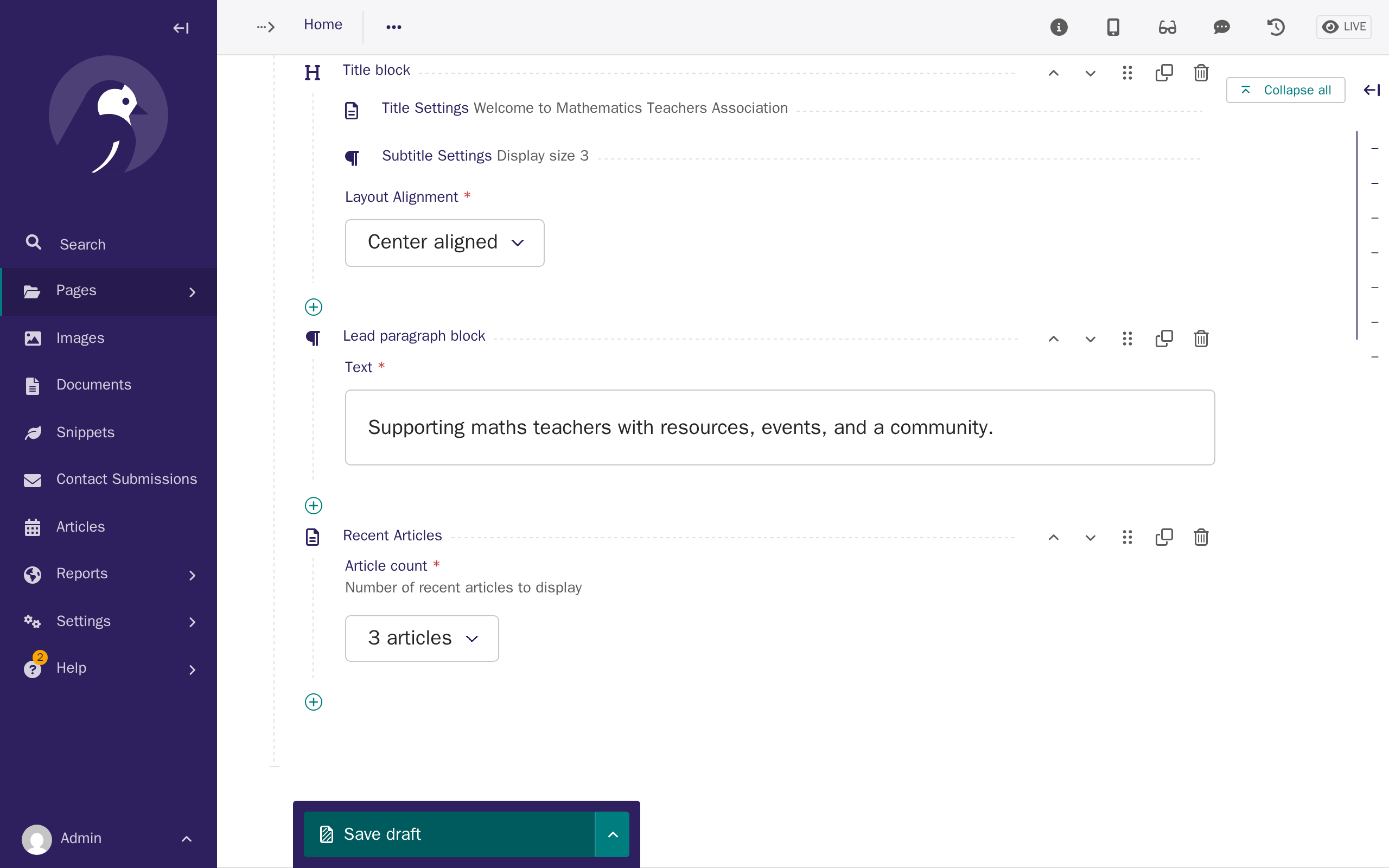
The Recent Articles block adds a grid of your most recently published articles — the same cards used on the articles listing page. It's only available on the Home page, alongside the Title block — see CMS: Content blocks.
-
Edit your home page and insert a Recent Articles block into the Body, the same way you'd insert any other block — see Tutorial 3: Your first pages. Choose how many articles to show, 3 or 6.
-
Publish the home page. Visitors now see your most recent articles on it.